“Lush Sensation provides independent reviews of adult toy brands. We hope you love the products we recommend.”
Last Updated on January 9, 2026 by Kelly
When people think of connecting a Lovense toy, the first device that usually comes to mind is a phone. After all, a phone is a perfect remote for your sex toys.
Discreet, too!
But Lovense toys can be connected to more devices, including your PC. If you’re new to Lovense toys, you may ask,
“What’s the point?” A PC is so big, and not in a good way! Even a laptop is cumbersome to use.
So gather around, because there are lots of reasons to connect your Lovense toys to your PC.
Contents
The Power of PC Connectivity: Why Connect Your Lovense Toy?
There are several reasons to connect, including:
Enhanced Control and Customization
The Lovense Remote app is already packed with control and customization options. However, PCs allow you to use other tools.
There are several third-party tools you can connect your Lovense toys to, such as Buttplug/Intiface.
This software can bypass potential connectivity issues and is generally more reliable.
These tools also allow for much more customization. Think more detailed patterns, more ways to sync your toys, that sort of thing.
Seamless Integration with Streaming Platforms
Connecting your Lovense toy to a PC is a must if you love camming! Lovense supports all sorts of streaming sites and gives you the ability to create tip goals.
The more tips you get, the more intense the vibes.
Doing this on a PC using the Lovense browser extension gives you more control over your shows and your goals.
Interactive Gaming and Virtual Reality Experiences (VR Playspace)

With your phone, you’re often limited to your gaming and VR choices. Even the most modern phones can’t deliver an experience like a good PC can.
Your Lovense toys will sync to videos, VR games, you name it, for an even more immersive experience!
Access to the Full Lovense Ecosystem (Lovense Levels, Lovense Browser Extension)
Finally, some Lovense apps are available on PC only.
Lovense Levels is an excellent camming app, while the Browser Extension can enhance your lewd adventures and add an extra layer of privacy.
These are just some reasons to connect your toy to your PC.
That being said, there are some rules to keep in mind.
Essential Prerequisites Before You Begin
Before connecting your toy to your PC, here’s what you need to have.
Your Lovense Toy
Duh! Ideally, the toy should be fully charged and ready to go. The toy you have should also be the latest release, or a generation before.
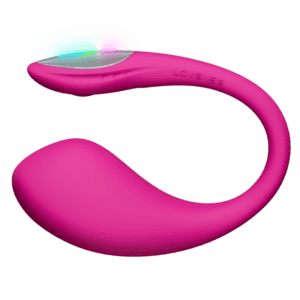
For example, a Lush 4 or 3 will be much more reliable than a 1 or 2.
And it’s also important to know what the toy is capable of. Some toys can be connected to videos, while others are a little limited.
A Compatible PC
You don’t need a $3,000 gaming PC to run this, but you should have a PC that can seamlessly connect to your toy, VR headset, and play VR games and videos well.
If you have an old laptop you got for a couple of hundred, it may not be enough. Your preferred headset will have the minimum PC requirements you probably need.
For example, the Meta Quest 3 needs a Windows 10 or 11 PC with Intel i7 or AMD Ryzen 7, 16 GB of RAM, and a decent graphics card (like Nvidia RTX 20 or AMD Radeon RX 6000.)
If you’re unsure, it may be time to do some PC shopping. Go to your local PC store and see if they can build you a good one.
Alternatively, go to a store like Best Buy and figure out which pre-built PC offers the best specs for your buck.
A Good Internet Connection
You don’t want your videos lagging when things get good! You need at least a broadband connection.
Broadband is defined minimally as 25Mbps download and 3 Mbps upload. However, I’d recommend at least 100Mbps if you want to stream 4K videos and games without much lag.
Internet not cutting it? It may be worth it to call your ISP to see if you can upgrade.
If they’re slow, look around. In recent years, fiber internet options have arrived in many communities, including smaller towns that used to only get DSL.
Lovense Account
Be sure you have a Lovense account created. Fill it out with your preferences as well. The more you tell about yourself, the better experience you will have.
Bluetooth Connection
Finally, you should have a Bluetooth connection, either from the PC’s native Bluetooth or from the Lovense dongle.
Let’s explain what that means.
Understanding Your Connection Options: Lovense Dongle vs. Built-in Bluetooth
Lovense has a Bluetooth dongle you can use to connect your toys to your PC. But most modern PCs have Bluetooth built into them.
When you’re connecting your toy via your phone, you’re using its native Bluetooth. So, why is the dongle necessary?
Let’s break it down.
Why Choose a Lovense Dongle?
You should choose a dongle if your PC is older. Let’s say you’re one of those people who still uses Windows 7.
The dongle would be perfect for this situation. Also, the Lovense dongle is ideal for official Lovense applications.
This USB plugin makes connecting to your toys less of a hassle.
If you’re only going to use official Lovense products, you may want to get a dongle.
Why Choose Built-In Bluetooth (Or a Regular Dongle)?
That said, if you’re going to be using third-party applications, it’s smarter just to use what you have.
The Lovense Dongle is quite limited.
Users reported the dongle being a lot slower. Something about having to run through an extra ARM processor. Computer nerd stuff. Also, you can only connect to two toys at a time.
In summary, the Lovense Dongle will give you less hassle if you only plan to use official applications.
However, for a more reliable connection and more customization features, go with your PC’s built-in Bluetooth or a normal dongle.
Personally, I have both a regular Bluetooth connection and the Lovense dongle. Both work well depending on which app I am using.
Step-by-Step Guide: Connecting with the Lovense Connect PC Application
It’s quite easy to connect. Here’s how!
- Make a Lovense Account. If you bought from the store, you should already have one. Otherwise, sign up on Lovense’s page. You’ve done the whole “Create an account” song and dance before, so you know how it works. Have a strong password, verify your email, yada yada yada.
- Purchase a USB Bluetooth Adapter. Lovense has one on their site for about $10. When you receive it, plug it into an available USB port. If it blinks red, it works!
- Install the Lovense Connect App. You can find it on Lovense’s website. Simple enough. Click on it when downloaded, and follow the on-screen instructions. Or read my article on the app here.
- Connect Your Toys. Hold the power on your toy for three seconds. It should vibrate, and the red light should start blinking. On the app, you should see an option to “Add Toy(s).” Click on it, and you should see your toy pop up. Click to pair. It should work with ease.
- Install Lovense Cam Extension. Download this app from the Lovense website. Unzip the file, then click the folder inside called lovense_cam_3098. Open Chrome, go to the three dots, then go to Extensions > Manage Extensions. Toggle the switch that lets you enable Developer Mode, then click “Load unpacked.” Choose the lovense_cam_3098 folder. Turn off developer mode if you want, and then use the pin option to pin the app.
- Sync Connect and the Browser. Download the Lovense Browser extension, log in, and go to Settings. There, select “Connect By PC.” Your toy should be added!
Troubleshooting Common Lovense PC Connection Issues
There are guarantees in life. Death. Taxes. Connection issues. I don’t know how to solve the first two, but here’s how to solve common connection issues.
Not Connecting

Have you tried turning it off and on again? Holding the power button on your toy till it turns off, and giving your PC a refresh may help.
Generic advice? Yes. Effective. Also yes.
Alternatively, it may be because you’re not in range, the device is in sleep mode, or it has a low battery.
Another problem may be that the Bluetooth on your PC is dated. Use a newer dongle or purchase the official one from Lovense.
Lovense Connect App Issues
Chrome users will need to use the Lovense Browser Extension. You also need to make sure you’ve downloaded the latest version.
If you’re using an older version, things may not work as they should.
Another issue may be that your PC and your phone are not on the same network. Ensure that everything is connected to the same Wi-Fi signal.
Also, check your network. If it’s on “Public,” and not “Private,” you may have connection issues.
Windows gets really picky about what it accepts when you’re public, and for a good reason.
Another way to resolve this may be to enter your IP address and port number on the Lovense Connect app.
It’s rare that this happens, but it works. Changing your DNS to Cloudflare or Google can help as well. Those are 1.1.1.1. and 8.8.8.8, respectively.
And once again, uninstalling and reinstalling everything is the time-tested way to resolve these issues if they don’t work.
Regular Bluetooth Connection Issues
Using a third-party app comes with its own connection issues. Once again, restarting your Bluetooth and the app may work.
Another way to resolve is to remove any existing pairs. Your Bluetooth settings in Windows should list all paired devices.
You may need to remove these, then pair them with the third-party application.
Interestingly, sometimes having the latest tech may be your downfall. Some third-party apps may work better with a Bluetooth 4.0 dongle instead of 5.0.
This fact is especially true if you’re using a 5.0 on Windows 10.
Lovense Dongle Issues
Unplug and plug it back in. Duh. Besides that, avoid any conflicting connections. When you plug in the dongle, turn off your PC’s native Bluetooth.
Also, many third-party apps may not support the Lovense USB dongle. Remember, this is for official Lovense applications!
Finally, if you get an error that says “app connection refused,” you may need to open Command Prompt and type netstat -ano.
If you see that port 20010 is in use, you should open Task Manager to investigate further.
Luckily, the issues where you need to be a computer wiz to figure out are rare. Most of the time, unplugging and plugging back in is the winning secret.
With that said, if you’ve tried all of the above and you’re still having issues, don’t be afraid to reach out to Lovense’s customer support.
They’re quite helpful! Oftentimes, the solution is simple, but not something you’d think about!
Also Read:
How to Use Lovense OBS Toolset: Connect Your Toys for Interactive Live Streaming