“Lush Sensation provides independent reviews of adult toy brands. We hope you love the products we recommend.”
Last Updated on January 6, 2026 by Kelly
When you think of Lovense, what pops up first? If not the toys, then the fact that you can control the toys via the app.
The Lovense Connect app lets you control it, for a fee. Although the app is user-friendly, newcomers may still find it somewhat confusing.
They are always adding and changing features in the app, plus it’s not always easy to connect it the first time.
That’s why this blog is here! To give you a no-nonsense guide on connecting to the app.
Contents
How to Connect Your Lovense Toys to the Connect App
It doesn’t matter which product you get. Butt plug, strap-on, male masturbator, it’s all the same. Follow these directions, and your toy should be ready to go!
Before connecting, it’s important you charge your toy(s). Many Lovense products don’t come fully charged. For best results, charge it to 100% beforehand!
First, download the app. It’s available on Google Play or the Apple App Store.

If you have downloaded the app already and forgot (it happens!), then search for it and download it again to ensure it’s up-to-date.
Then, create an account. If you don’t want to create a Lovense account on your main email, use a burner email, or the email associated with your sex work persona.
Now, turn it on. Your toy, that is. Most toys will have a noticeable button. Hold it down, and it should vibrate once and start flashing.
If you don’t know how to turn it on, read the manual. Also, your phone’s Bluetooth needs to be turned on.
On modern Android phones, swipe down from the top right of your screen and see if the Bluetooth icon is turned on. For iPhones, go to Settings > Bluetooth and make sure it’s turned on.
On the app, it’s time to add your toys. On the home screen, look for the “+” icon, located on the top right.
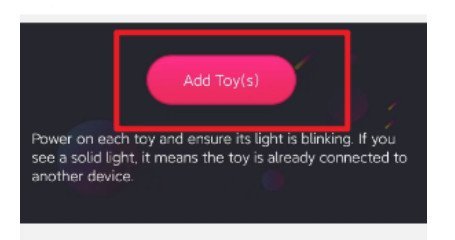
When you click it, four options should pop up. Click “add toy.” Alternatively, you can press the link icon to the left of the “+” icon.
You’ll see a list of connected toys, if applicable, and below that, “Available toys.” Click on the toy, and click any permissions.
Once finished, click “Done.” If the toy does not appear, give it some time, come closer to it, and ensure the toy and your phone’s Bluetooth are turned on. As turned on as you will be!
The “My Toys” window also offers options, such as the ability to test the toys by clicking their icons or to toggle certain toys on and off.
It’s very simple to use! Now you can connect your toy and have fun. If you’re part of the 32% bored in the bedroom, you won’t be any more!
Extra Mobile App Instructions to Connect to Cam Site of Choice
It’s easy to connect to the cam site of your choice! When your toys are connected, select “Accounts.”
This option is located at the top of the screen. You’ll then need to enable your phone’s camera permissions. There, you can scan the QR code associated with the cam site of your choice.
When asking for permission to take control of your toy, tap “Yes.” Rinse and repeat to add more toys.
The sites you use should be on your accounts page afterward.
To read more about connecting your Lovense toy to cam sites, check out my article here.
How Can I Give Control to My Viewers Once Connected to a Cam Site?

Once everything is connected, press “Control Link,” located at the top of the page. Enter the amount of time a person can take the wheel of your device, then press “Generate Link.”
You’ll get a URL that you can send to one lucky person. Afterward, that person can control the intensity of vibration frequencies and play with the patterns!
Fun stuff! You can also customize the time, so once the clock is done, the link expires, and the fan will have to pay more.
Also Read: A Breakdown of All The Different Lovense Apps
How Can I Use the Lovense Connect App for Camming?
The most straightforward way to do this is to download Lovense’s Stream Master application. After installing the app, you can then personalize everything to your liking.
Lovense Stream Master has an amazing list of features, such as the ability to personalize your Live Room setup guide, emojis, animations, and more.

Another feature is Blitz Mode, which can gamify your tipping. The Lovense Connect App can enhance your cam session like never before.
One reason is that when people tip, the goals will automatically be fulfilled, and you’ll feel it.
You ask for $100, and all your toys will buzz at once? It will happen. This can satisfy your fans and let you collect the bag faster than ever!
How Can I Use The Cam Extension on The Lovense Web Browser?
The cam extension is easy to use! Here’s how to do it!
Logging Into the Lovense Cam Extension
- First, download the cam extension by going to Lovense.com, then selecting “downloads” in the camming section. On Chromebook, you need to use the Cam extension, not the browser itself. However, if you have access to it, you should use the Lovense browser. It’s very user-friendly!
- Download, and while it’s doing that, create an account if you haven’t already!
- Download the Lovense Connect app for Mac or PC if you are using the Lovense USB adaptor.
- Click the Lovense icon and enter your account information.
- Press “Settings” once logged in.
- If the toys are paired via phone, you can scan the QR code on your computer to pair them to your PC.
- The Lovense USB Bluetooth adaptor can also scan for toys. Open the app, and the adaptor will start scanning for toys. Be sure the toys are in pairing mode!
- Alternatively, your Mac or PC can pair with toys via their built-in Bluetooth.
Installing the Chrome Extension
To unzip and install the Chrome Extension, extract the downloaded file. Then, go to Chrome, click the three dots, go to “more tools,” then “extensions.”
Turn on developer mode, click “Load unpacked,” and select the unzipped folder.
After that, you can pin the extension! Click on it to use it.
Using the Extension Once You’re Connected
- When you visit the cam extension settings page, you can see your toys and their statuses.
- You can also add your cam site. Press the “+” icon, then click the site of your choice via the drop-down menu. Don’t see your site on there? No problem. Just type the site’s URL, and you should connect.
Adding Your Tip Levels
- Tip levels give an incentive for your fans to donate more. There will be suggested levels, but I recommend adjusting them according to your needs and personality.
- Adjust according to toy, frequency, etc. Click “Add Level” to add additional levels and tiers.
- Special commands can also be implemented. These can pause your toys or clear your current queue.
- Press “save” when you’re done. It’s in the top right.
- I’d recommend starting simple, especially when new. But once you start growing, give your fans a ton of new levels to explore!
Making a Control Link
Does your fan want to control your toy? Send them a link! (If they paid the piper, of course.)
To generate a link, you:
- Click the extension icon, then click “Control Link.” It’s to the right of the “Settings” button.
- A window should pop up. This window will let you choose how long a fan can control it, and what toys.
- Press “Generate Link.” A link should appear. Press “Copy” and send.
- Don’t open the URL yourself if it’s a one-time link.
And you’re all set. But it’s easy for you to forget to turn something on, or sometimes, connections can be funky. So I’d recommend that you send a test tip!
Under the “Control Link” icon, you should see “Send Tip.” This gives a test tip.
Your toys will then respond according to your settings, theoretically. Test tips can only be done while broadcasting.
I’d suggest a private broadcast before the real deal to ensure your stuff is in order.
Another thing is to contact customer support if you’re having issues.
Lovense is pretty easy to use, and most of the time, things will work as they should.
But technology is technology at times. Sometimes, your toys may not vibrate as they should, or you have connection issues.
Contact Lovense, and also the site you’re using.
What Is The Lovense Connect App?
Not to be confused with the Remote app, which is more intended for private use, the Connect app is for camming.
Viewers can get access to your toys, letting them control them according to their patterns. It’s a way for your fans to get closer to you and offer the big bucks along the way.
What Are The Benefits of Using the Lovense Connect App?
The Lovense Connect App has a lot of benefits and very few drawbacks. Let’s look at some of them.
- Long-distance play. It doesn’t matter if your fans are on the opposite side of the world. As long as they have a connection and the right tip money, they can connect from long distances.
- You can connect your toy to camming sites, giving your fans an incentive to tip more. And it’s not just one or two cam sites. The number of sites you can use is virtually limitless!
- It’s very intuitive and easy to use. Everything is pretty self-explanatory, and if something seems a little confusing, Lovense has an excellent customer support base.
- Connect as many toys as you can. Now, I would recommend connecting around 3-5 for the least amount of lag, but if your connection is strong, you can always add more.
- Sharing the control link is easy. Just generate, copy, and paste. That’s it! Every link is unique, which will make your simps feel all the more special.
- Set vibration frequencies based on tipping amounts. The more tips, the harder the toy can vibrate, or the longer it will be vibrating. Your fans can pay to win. And by win, I mean orgasm!
- Tons of customization, including games, private sessions, different toys for different tips, and more.
- Music syncing. Yes, your fans can play “All Star” by Smash Mouth, and the vibrator will buzz to the beat.
- And much, much more! Lovense is always adding features. I can’t possibly list them all.
What Lovense Toys Work with The Connect App?
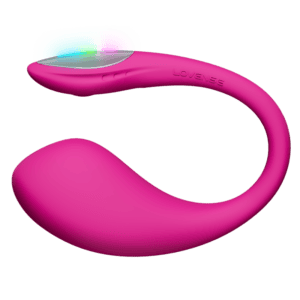
Most of the top-rated Lovense toys, such as the Lush 4, work with the Connect App. The ones that don’t are usually toys that don’t have any battery power.
For example, the Kraken male masturbator would not have any connection to the Connect App.
Also Read: Best Interactive Adult Sites For Lovense Toys
FAQ
How Many Toys Can The Connect App Control At Once?
There is no real limit to how many toys you can connect. But we would recommend five at a time so that there isn’t too much lag.
This number may be more or less, depending on how strong your connection is.
What is the Lovense QR Code Scanner?
The Lovense QR Code Scanner lets you sync your toys to the camming site of your choice by simply scanning a code.
That’s it!
Generally, the QR code scanner is reliable and will open up the site with ease.
How Do I Use The Lovense QR Code Scanner?
Sync your toys, and under “accounts,” you should see the QR code scanner. Be sure the code is easily scannable.
Don’t be too close or far away, and make sure the lighting is good. If you haven’t cleaned your lens, do so!
Do I need the Lovense USB Bluetooth Connector to use the Lovense Connect App with my Computer?
Not necessarily. If your PC has Bluetooth built in, you can connect. Alternatively, any modern Bluetooth USB device will work.
The Bluetooth connector by Lovense is mainly about convenience, as it was built to connect to your toys.
How can I troubleshoot connection issues in the Lovense Connect app?
Be sure both devices are turned on and have Bluetooth enabled. Turn them off and on, or disconnect them, if needed. If you’re still having issues, contact customer support.
What is the Difference Between the Lovense Remote App and Lovense Connect App
The main difference is that the Lovense Remote App is for everyday use, such as playing solo or sharing control with a partner, while the Lovense Connect App acts as a relay that passes your toy’s signal to a computer. Connect is useful for cam performers who need their device linked to desktop platforms or third-party camming software.