“Lush Sensation provides independent reviews of adult toy brands. We hope you love the products we recommend.”
Last Updated on January 8, 2026 by Kelly
OBS (Open Broadcaster Software) is one of the best applications to use if you want to stream. It’s free to download, and it’s open-source.
If you’re not a computer geek, open-source means that others are allowed to modify and make plugins for it.
This freedom opens the door for many ways to stream.
One example is the Lovense OBS Toolset, which makes camming much more fun! In this post, I’ll tell you what the Lovense OBS Toolset is, how to install it, and more.
Contents
What is the Lovense OBS Toolset?
The Lovense OBS Toolset lets OBS users integrate their Lovense toys into their streams.
There are many programs you can use to make your Lovense toys prominent, and this one works great if you already have an OBS setup.
Why Use the Lovense OBS Toolset? Benefits for Cam Models and Content Creators
There are several benefits, including:
Letting Your Fans Take Control
The most obvious benefit is that your fans can tip tokens, which can activate your Lovense toys for a set duration and intensity.
The Lovense OBS Toolset makes this easier, letting you connect your toys to cam sites, set tip goals, and control them from the studio.
It’s So Simple!
If you already have OBS set up and are familiar with it, adding the toolset is easy.
While most ways to stream and use Lovense toys are easy, many can require some complex steps, which can get annoying.
No need to worry about that when you stream via OBS!
It’s Free

Best of all, it’s free. In today’s Internet filled to the brim with subscription plans, freemium, and enshittification, OBS is for the people, by the people.
Obviously, you have to pay for the toys, but you don’t need to pay extra to stream anything!
Also Read:
How to Connect Lovense Toys to Chaturbate
How to Connect Lovense Toys to MyFreeCams
Step-by-Step Installation of the Lovense OBS Toolset
It’s easy to install! Here’s how!
1. Make Sure You Have All the Equipment
To stream, you first need decent hardware. You don’t need to spend thousands, but you should have a computer with a good graphics card, at least 16GB of RAM, and an Intel i5 or Ryzen 5 CPU.
You should also have a good webcam, mic, and broadband internet. Preferably, you should use an Ethernet cable.
2. Download OBS Studio
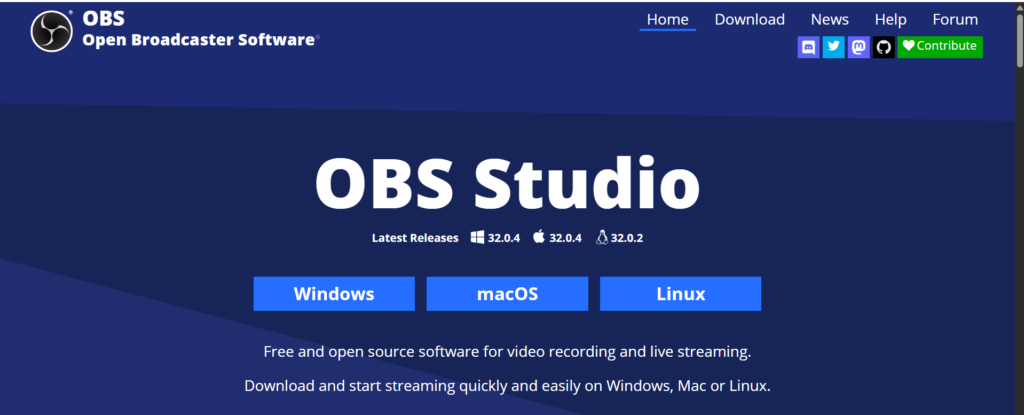
First, download OBS if you haven’t. I’d recommend you go to obsproject.com and download it from its source, as other sites may come packaged with junk.
As I mentioned, this program is free. There are no hidden features behind a paywall, no subscriptions. Just download, and voila!
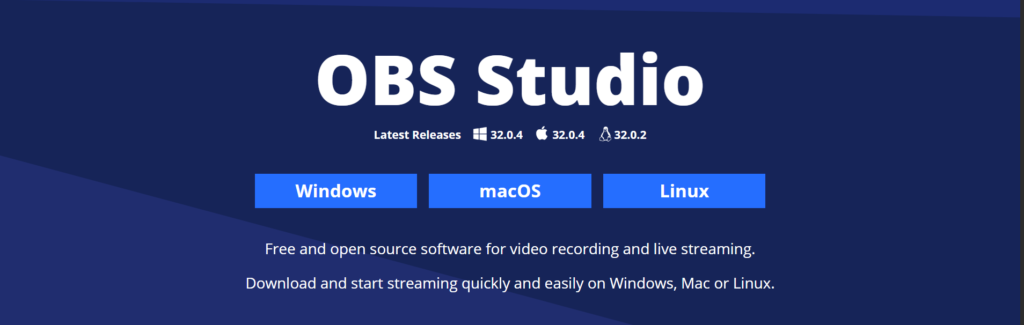
It is available for Windows, Mac, and Linux. Be sure to choose the correct OS. You can’t miss it; on their site, they have the Windows, Mac, and Linux logos.
Click on them. You can also download via torrent and ZIP, though downloading the installer is perhaps the easiest way.
In most cases, you’ll want the latest version. Follow the instructions via the Installation Wizard, and you’re good to go.
3. Download and Install the Lovense OBS Toolset
Go here, and in step 4, you should see links to download Lovense’s OBS toolset either as 32 or 64-bit Windows downloads.
For most modern systems, you should go with the 64-bit option. Now, what if you have a Mac? I’ll answer that in a bit.
Now, follow the installation wizard. You will also be able to choose the default settings or select your own.
Generally, I’d go with the default first, then adjust later, but your choice. I’m not your parent.
4. Verify It’s Installed
You’ve installed it, but does OBS think you have? To ensure it’s installed, restart OBS, and then go to your sources.
When you add a source, you should see “Lovense Video Feedback” in the list. If you don’t, we have a troubleshooting section for you.
5. Setting it Up
Now, set up a stream as normal. If you’re new to this streaming thing, you should click the + icon in your sources and choose “Video capture Device.”
This will let you pick your webcam. Be sure it’s alongside Lovense Video Feedback.
Then, set up anything else. If you have an overlay, chat window, or anything else you want to add, do it!
Also Read: How to Connect Lovense Toys to a PC Properly
Mac Support Considerations: What You Need to Know for macOS Users
So, you installed OBS, which is quite easy, as it has a clear Mac version. You then go to install the Lovense OBS Toolset and see that it’s only available for Mac users.
What gives? Yeah, it seems that, as of this article, there doesn’t appear to be an OBS toolset for Mac users.
But there is an alternative. Lovense’s Stream Master is available for Mac users. It also works well, so give it a shot.
Smartphone Configuration
Now that you have added the OBS toolset, you should also use your smartphone to sync your toys to OBS.
If you haven’t already, download the Lovense Connect app. This app is not to be confused with the Remote app. Remote is meant for personal use.
Afterward, you should install the Lovense Browser extension for Chrome, which will be the bridge between your mobile and your desktop.
We have several articles detailing how to install that, so check those out! Log in to the extension, and in the widget, you can adjust the settings.
Be sure to add and connect your toys to Lovense Connect. Click Add Toy(s) and then be sure that your Bluetooth is on.
Your toys should be in pairing mode, too. Click the button on your toy, hold it down, and it should buzz. It will then be in pairing mode.
Configuring Your Lovense Toys for OBS
These settings let you choose from several streaming sites, and it’s easy to change the Basic Levels.
Ideally, set it so the more your fans tip, the stronger and longer the vibes will be!
While you’re at it, you can change the Video Feedback’s display settings, letting you adjust its size and positioning.
Now, you should be good to go! When you stream, your toys should be synced, and your fans can interact with your toys via donations.
You will probably find that the tips you get increase tenfold. Maybe more if you play your cards right!
Common Connection Issues With OBS
Sometimes, things don’t go the way they should. Let’s look at some solutions to common connection issues.
Lovense Toolset Not Showing
First, ensure that OBS is updated to the latest version, alongside the Toolset. Restart your computer.
If needed, uninstall and perform a fresh installation. Sometimes, it may simply be because the plugin did not install to the correct folder.
A simple way to ensure the toolset goes to the right place is to unzip the folder to C:\Program Files\obs-studio\obs-plugins\64bit.
You may also need to copy the .dll files of the toolset manually into this folder.
Issues With Bluetooth Adapter
I would always recommend purchasing Lovense’s Bluetooth dongle for the best reliability. If you’re using another adapter, ensure it’s configured, connected, and compatible.
This sentiment is especially true if your device is a little older.
OBS Toolset Not Detecting Toys
Once again, be sure your toys are turned on and they are fully charged. The Toolset should also be installed and configured.
If you haven’t added the Lovense Video Feedback to your source, that’s another reason why you’re not seeing it.
Restarting OBS and the Toolset can also help.
Issues With Audio or Video Quality
Is your chat saying your audio or video quality needs work? Here are some ways to fix that.
First, be sure that your microphone is positioned near your mouth, and your camera is clean and focused on you.
You should also adjust your mic and camera settings in OBS. OBS has several audio filters that can get rid of background noise.
But you may need to play around with them to figure out the best settings for your room and setup.
Also, if you have fast Internet, go to settings. You can go to Video to adjust the overall resolution of your video.
Make it 4K if you can, or at least 1080p. In your Output section, change the bitrate. Bitrate reflects how much data is allowed to be transferred per second.
If you want to stream in 4K, you need a minimum of 35,000-100,000 kbps. This means you’ll need reliable cable or fiber internet to get the best rates.
Again, OBS is a process. You will likely not get it 100% right the first time and will need to play around with the settings for the best experience.
As long as you put on a great show, your fans will embrace technical difficulties.
Contacting Lovense and Forums
Finally, if you’re still having issues, I’d recommend you contact Lovense. They have some great customer support, with trained experts who will help you get to the bottom of everything.
Of course, it may be an issue on OBS’s end. Remember, OBS is a large community. I would highly recommend you go to OBS’s forums on the OBS Project website and explain what’s going on.
Chances are, you may find an expert willing to work with you. Or learn that there was a simple setting you forgot to toggle. It happens!
In some cases, it may be hardware limitations. If your PC is a decade old, or your internet is slow, you may need to upgrade or work within your limitations.
For example, sacrifice a little video quality for a smoother stream, or turn off some irrelevant devices using your WiFi.
If you live in a rural area, double-check what Internet options are available. Fiber and other high-speed options are becoming more readily available.
See Also: Types of Lovense Apps – Which Remote Toy Option is Right For You?